Gamdom Casino login gives access to every part of our platform with one set of details: the casino, Gamdom Originals, live casino, sportsbook, cashier and rewards. The same account works on desktop and mobile browsers, so a session started on a laptop can continue on a phone.
This page explains how to log in, how to protect the account with two-factor authentication, how to reset a password and how to fix the sign-in problems that come up most often.
Our Privacy Policy explains personal information and account data questions.
How to Log In to Gamdom Casino
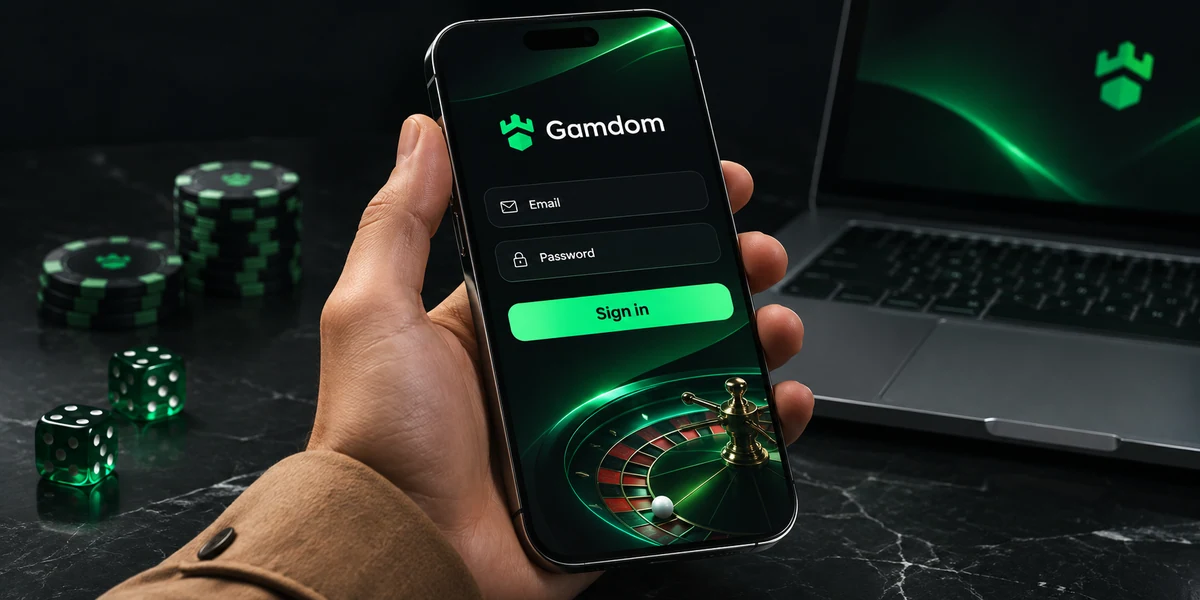
Signing in takes a few seconds once an account is open.
Login Steps on Desktop
- Open the Gamdom Casino site in an up-to-date browser.
- Select Login in the top corner of the page.
- Enter the username or email address used at registration.
- Enter the password.
- If two-factor authentication is switched on, enter the six-digit code from the authenticator app.
- Select Login to confirm.
Once signed in, the balance appears at the top of the screen, along with the wallet icon and the account menu.
Login Steps on Mobile
- Open the Gamdom Casino site in the phone’s browser, or tap the home screen shortcut.
- Tap Login.
- Enter the username or email address and the password.
- Enter the two-factor code if prompted.
- Tap Login to confirm.
The mobile layout keeps the balance, cashier and menu at the top of the screen, with the main sections easy to reach.
What Login Unlocks
| Area | Available after login |
|---|---|
| Casino and Originals | Play every game with the account balance |
| Live casino | Join live tables and game shows |
| Sportsbook | Place bets and view open and settled bets |
| Cashier | Deposit, withdraw and view transactions |
| Rewards | Claim rakeback and cashback and check level progress |
| Promotions | Opt in to active offers |
| Account settings | Security, verification, limits and preferences |
No Account Yet? Register First
The Login form works only for existing accounts. New players start with registration.
- Select Register at the top of the page.
- Enter an email address, a username and a password.
- Confirm being aged 18 or over.
- Read and accept our Terms and Conditions and Privacy Policy.
- Confirm the email address through the link we send.
- Return to our site and select Login to sign in for the first time.
First Login Checklist
After the first login, a few minutes in the account settings set the account up well.
- Switch on 2FA: Security
- Set a deposit limit: Responsible gambling
- Set a session reminder: Responsible gambling
- Choose odds format: Sportsbook settings
- Upload verification documents: Verification
- Add a home screen shortcut: Browser menu on the phone
Our Terms and Conditions set out the conditions for accounts, games and payments.
Login Details Explained
The Login form accepts two kinds of identifier.
- Username: The name chosen at registration. It is not case sensitive in most cases, but typing it exactly avoids problems
- Email address: The email linked to the account
The password is always case sensitive. “Password123” and “password123” count as two different passwords.
Creating a Strong Password
A strong password is the first line of defence for any account.
- Length: 12 characters or more
- Variety: Upper case, lower case, numbers and symbols
- Uniqueness: Not used on any other website
- No personal details: No names, birthdays or football teams
- Passphrase option: Four or more random words joined together
A password manager can create and store strong passwords so that each site has its own.
Two-Factor Authentication
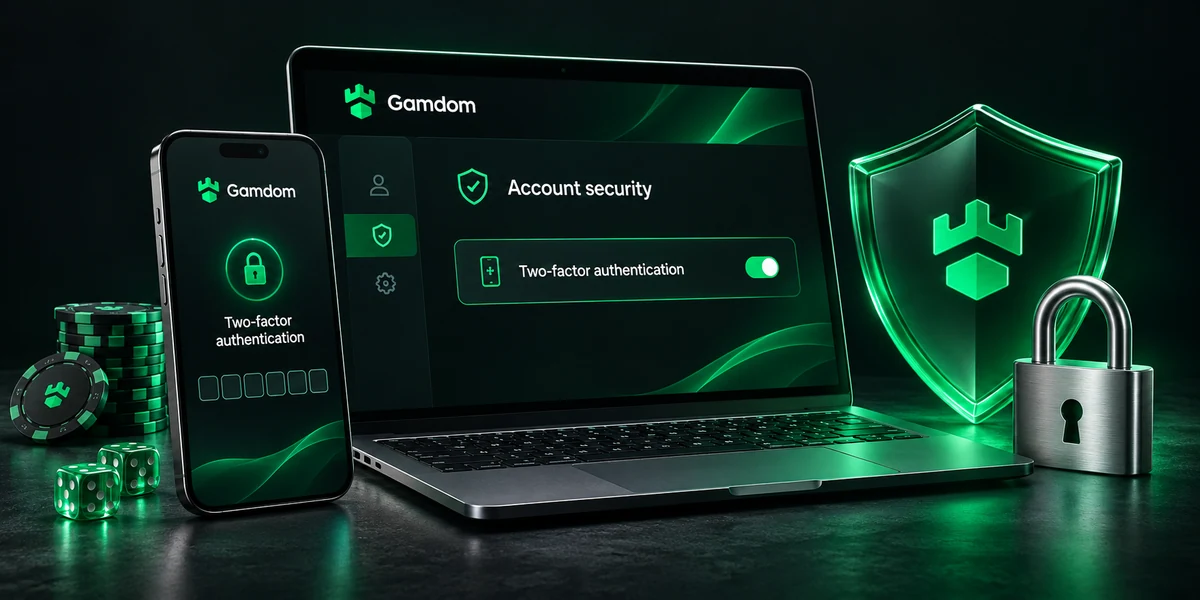
Two-factor authentication (2FA) adds a second step to the Gamdom login. After the password, a short code from an authenticator app is needed. Even if someone learns the password, they cannot sign in without the code.
Setting Up 2FA
- Log in and open the account menu.
- Select Security.
- Choose the option to enable two-factor authentication.
- Install an authenticator app on the phone if one is not already in place.
- Scan the QR code shown on screen with the authenticator app.
- Enter the six-digit code from the app to confirm the setup.
- Store any backup codes shown during setup in a safe place, offline.
From then on, every login asks for a fresh code from the app. Codes change every 30 seconds.
When 2FA Is Requested
- Logging in: Yes, once 2FA is switched on
- Withdrawing funds: Yes, in most cases
- Changing security settings: Yes
- Changing the password: Yes
2FA Tips
- Keep the phone’s clock set to automatic time. Codes depend on the correct time.
- Store backup codes away from the phone, such as on paper in a safe place.
- When changing phones, move the authenticator app to the new phone before removing it from the old one.
- Never share a 2FA code with anyone. Our team will never ask for one.
Resetting a Forgotten Password
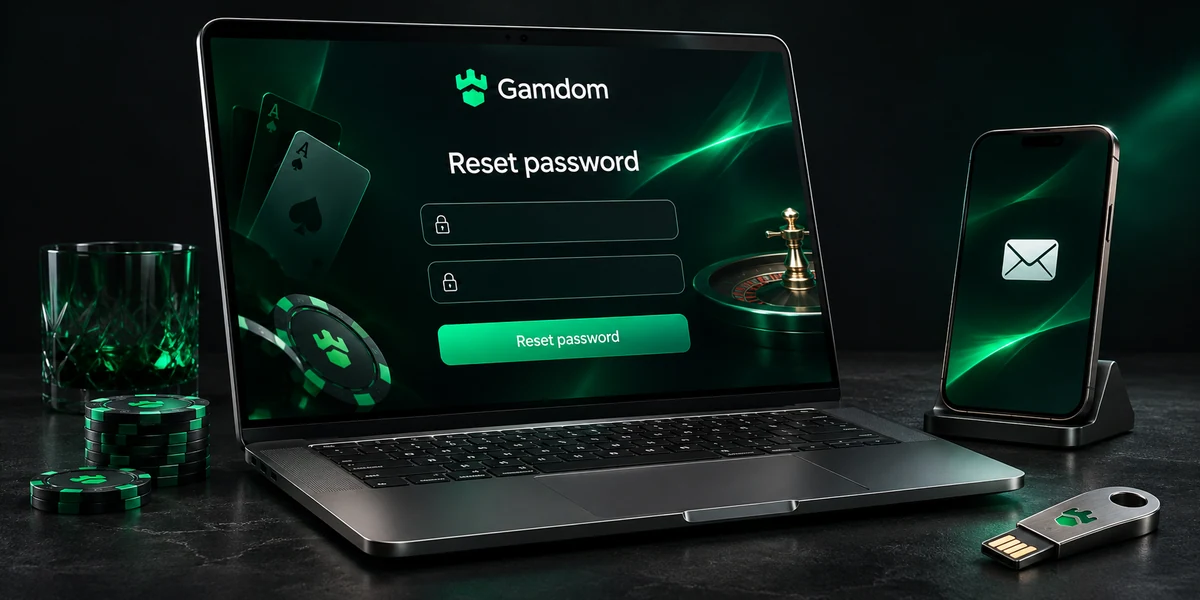
Forgotten passwords happen. The reset process is quick.
Reset Steps
- Select Login.
- Select Forgot password on the Login form.
- Enter the email address linked to the account.
- Open the reset email from Gamdom.
- Follow the link and choose a new password.
- Log in with the new password.
If the Reset Email Does Not Arrive
- Spam or junk folder: Some email providers filter automated messages
- Promotions or updates tabs: Some inboxes sort automated messages into separate tabs
- Correct email address: The email must match the one on the account
- Wait a few minutes: Emails can take a short time to arrive
- Request once more: A second request sends a new link. Older links may stop working
If the email still does not arrive, our support team can help confirm the details on the account.
Reset Link Safety
Password reset links are personal. Before clicking any reset link:
- Check that the email was requested. An unexpected reset email may mean someone else typed the address.
- Look at the link address before opening it.
- Never enter login details on a site reached from an unexpected email.
An unexpected reset email is a good reason to change the password and turn on 2FA.
Our sportsbook page explains sports markets, selections and settlement rules.
Fixing Common Login Problems
Most sign-in problems have simple fixes. The table below covers the issues our support team sees most often.
| Problem | Likely cause | Fix |
|---|---|---|
| “Incorrect details” message | Typo in username, email or password | Check caps lock and retype carefully |
| 2FA code rejected | Phone clock out of sync or code expired | Set the clock to automatic time and use a fresh code |
| Page does not load | Browser cache or poor connection | Refresh, clear the cache or try another browser |
| Login button does nothing | Browser extension blocking scripts | Turn off ad blockers for our site or try a private window |
| Too many attempts | Several wrong entries in a row | Wait for the temporary lock to clear, then reset the password if needed |
| Account restricted | Time-out, self-exclusion or a security hold | Contact support for details |
| Logged out often | Session timed out after inactivity | Log in again. This is a security feature |
Clearing the Browser Cache
Old stored files can stop pages from loading correctly. Clearing the cache usually fixes this.
- Chrome (desktop): Settings, Privacy and security, Delete browsing data, choose cached images and files
- Safari (iPhone): Settings app, Safari, Clear History and Website Data
- Chrome (Android): Browser menu, Settings, Privacy and security, Delete browsing data
- Firefox: Settings, Privacy and Security, Cookies and Site Data, Clear Data
- Edge: Settings, Privacy, search and services, Clear browsing data
After clearing, close the browser fully, open it again and go back to the Login page.
Trying a Private Window
A private or incognito window opens without stored data or most extensions. If login works in a private window but not in a normal one, an extension or stored data in the normal window is the likely cause.
Lost Access to the Authenticator App
If the phone with the authenticator app is lost, replaced or reset:
- Use a backup code, if one was saved during setup.
- If no backup code is available, contact our support team.
- Our team will run identity checks before removing or resetting 2FA.
- Once access is restored, set up 2FA again on the new device straight away.
These checks protect the account. They make sure that only the true account holder can remove 2FA.
Mobile Login Problems
Phones bring a few login issues of their own. These fixes cover the most common ones.
| Mobile problem | Fix |
|---|---|
| Keyboard autocorrect changes the username | Turn off autocorrect for the field or paste the username |
| Password manager fills old details | Update the saved entry in the password manager |
| Home screen shortcut opens an old page | Remove the shortcut, open our site in the browser and add it again |
| 2FA app on the same phone is slow to switch | Copy the code in the authenticator app, then return to the browser and paste |
| Page looks broken in a small window | Rotate the phone or close other tabs to free memory |
| Login fails on mobile data | Switch to Wi-Fi or back again, as some networks block certain connections |
| Saved login lost after an update | Log in again and check the browser still allows our site to store data |
Browser Requirements
Gamdom Casino runs in modern browsers on desktop and mobile. For the smoothest login and play:
- Up-to-date browser: Older versions may not support current security features
- JavaScript enabled: Needed for the Login form, games and cashier
- Cookies allowed for our site: Keeps the session active after login
- Pop-ups allowed where needed: Some payment steps open in a new window
Chrome, Safari, Firefox and Edge all work well when kept up to date.
Using a Password Manager
A password manager stores long, unique passwords so they do not need to be remembered.
- Choose a well-known password manager from an official source.
- Protect it with one strong master password and 2FA.
- Let it create a new, random password for the Gamdom account.
- Save the entry with the correct site address, so it only fills on the real site.
- Use the autofill option on the Login page.
A useful side effect: a password manager refuses to fill details on a fake site with a different address. That makes it a strong defence against phishing pages.
Our bonuses and rewards page explains promotional eligibility and reward conditions.
Contacting Support About Login
If none of the fixes on this page work, our support team can help. Live chat is available from the chat icon on every page, including before logging in.
- Username or email on the account: Finds the account quickly
- What happens when logging in: The exact error message speeds up the fix
- Device and browser: Helps spot technical causes
- Steps already tried: Avoids repeating the same checks
- Screenshot of any error: Shows the problem clearly
Our team never asks for a password, 2FA code or recovery phrase. Any message asking for these does not come from us.
Staying Secure After Login
Logging in safely is only part of account security. A few habits keep the account protected for the whole session.
Checking the Site Address
Fake websites sometimes copy the look of real casino sites to steal login details. Before entering a password:
- Check the address bar for the correct site address.
- Look for the padlock icon showing an encrypted connection.
- Avoid logging in through links in unexpected emails, text messages or social media posts.
- Use a bookmark or the home screen shortcut to open our site.
Active Sessions
The Security section of the account menu lists active sessions.
- Device type: Spots a device that does not belong to the account holder
- Browser: Shows which browser is signed in
- Location or IP information: Flags logins from unexpected places
- Last active time: Shows how recently each session was used
Any session that looks unfamiliar can be signed out from this screen. Changing the password and enabling 2FA should follow straight away.
Shared and Public Devices
Logging in on a shared computer or public Wi-Fi carries extra risk.
- Avoid saving the password in the browser on a shared device.
- Always log out at the end of the session.
- Close the browser window after logging out.
- Avoid public Wi-Fi for logins and payments where possible. A mobile data connection is usually safer.
- Check active sessions afterwards from a personal device.
Signs of an Account Problem
- A login alert not recognised: Change the password and contact support
- Bets or transactions not made by the account holder: Contact support at once
- Changed email or password without a request: Contact support at once
- Unexpected 2FA prompt: Do not approve. Change the password
Logging In Across Devices
One Gamdom account works on several devices. Many players log in on a laptop at home and on a phone when away.
- Logging in on a second device: Both sessions can stay active, and both appear in the active sessions list
- Switching mid-session: The balance and bet history update on every device
- Open bets: Visible on every device under My bets
- Limits and settings: Apply to the whole account, on every device
Responsible gambling settings follow the account, not the device. A deposit limit set on a laptop applies just as much on a phone.
Moving to a New Phone
- Install an authenticator app on the new phone.
- Transfer the 2FA account from the old phone, using the app’s transfer option, or set up 2FA again through the Security section.
- Add the Gamdom home screen shortcut on the new phone.
- Log in and check that everything works.
- Remove the authenticator entry from the old phone only after the new one is working.
- Log out of Gamdom on the old phone before selling or giving it away.
Spotting Fake Login Messages
Phishing messages try to trick people into entering login details on a fake page. They often look urgent or exciting.
- Urgent tone: “Account suspended, log in within one hour”
- Prize claims: “A large bonus is waiting, sign in here to collect”
- Odd sender address: An email address that does not match the real site
- Spelling mistakes: Small errors in the brand name or wording
- Request for codes: Any message asking for a password or 2FA code
- Strange link: A link to an address that differs from the real site
The safest habit is to ignore links in messages and open our site directly from a bookmark or the home screen shortcut. Genuine account messages can always be checked by logging in the normal way.
Verification After Login
Some account actions may need identity checks after logging in. Verification confirms that the person using the account is the account holder and is aged 18 or over.
- First withdrawal: Yes
- Large withdrawal: Yes
- New payment method: In some cases
- Change of personal details: In some cases
- Removing 2FA without a backup code: Yes
Documents are uploaded from the Verification section in the account menu. Completing verification early means later requests move faster.
Our casino games page explains the formats available across the lobby.
Login and Responsible Gambling
The Gamdom login is also where responsible gambling tools take effect.
Time-Outs and Self-Exclusion
- Time-out: Login may still work, but gambling is blocked until the period ends
- Self-exclusion: Access to gambling is blocked for the chosen period, which cannot be shortened
- Deposit limit: Login works normally. Deposits stop once the limit is reached
- Session reminder: A reminder appears after a set time logged in
Once a self-exclusion period is set, attempts to log in during that period will not allow gambling. This is designed to support the decision made when the exclusion was set.
Session Reminders
A session reminder shows how long the account has been logged in. It is a simple way to keep track of time during play.
- Open the account menu.
- Select Responsible gambling.
- Choose a session reminder interval, such as 30 or 60 minutes.
- Save the setting.
When the reminder appears, it is a good moment to check the balance, look at the time and decide whether to continue or stop.
Further Support in the UK
UK players can reach the National Gambling Helpline on 0808 8020 133 for free, confidential support at any time, or visit BeGambleAware for advice. GAMSTOP offers free self-exclusion across UK gambling sites. Our Responsible Gambling page sets out every tool and resource.
What to Check After Each Login
A short routine after signing in keeps the account in good order.
- Look at the balance and compare it with the end of the last session.
- Check the Rewards page for any rakeback or cashback ready to claim.
- Open My bets to see whether any sports bets settled since the last visit.
- Look through the transaction history for any pending deposits or withdrawals.
- Confirm that limits and session reminders still match the current plan.
This routine takes less than a minute and gives a clear picture of the account before play starts.
Our main Gamdom Casino page brings the casino categories and account information together.
Changing Login Details
Login details can be updated from the account settings at any time.
Changing the Password
- Log in and open the account menu.
- Select Security.
- Choose Change password.
- Enter the current password and the new one.
- Enter a 2FA code if requested.
- Save the change.
A password change may sign out other active sessions, which is a useful way to make sure no other device stays signed in.
Updating the Email Address
The email address on the account is used for login, password resets and account messages. If it needs to change, the account settings or our support team can help. For security, extra checks may apply before the change is made.
Read About Gamdom Casino for an introduction to our platform and casino categories.
Gamdom Login FAQ
1.Can the same login be used for the casino and sportsbook?
Yes. One Gamdom login covers the casino, Originals, live casino, sportsbook, cashier and rewards.
2.Is the username or email needed to log in?
Either the username or the email address linked to the account can be used, along with the password.
3.What happens after several wrong password attempts?
After several failed attempts, login may be paused for a short time to protect the account. Resetting the password is the quickest way back in if the password is forgotten.
4.How is two-factor authentication switched on?
Open the account menu, select Security and follow the steps to link an authenticator app by scanning the QR code.
5.What if the authenticator app is lost?
Use a backup code if one was saved. Otherwise, contact our support team, who will verify identity before resetting 2FA.
6.Why does the session log out on its own?
Sessions log out after a period of inactivity to protect the account. Logging in again restores access.